
User guide
QLE Pro user guide
Everything you need to install QLE Pro, activate it and understand every screen. Start with the introduction video, then follow the chapters in order: within an hour, you will know the tool.
Updated on
Contents (13)
1Getting to know QLE Pro#
What QLE Pro does, and what it doesn't do.
 QLE Pro in 2 minutesVideo coming soon
QLE Pro is a MetaTrader 5 indicator that reads the market for you. On the chart, it draws liquidity zones, structure, bank zones, volume, news windows and volatility. In its panel, it sums up the situation: direction, confirmations, risk level, trade plan and position size.
QLE Pro never places an order. It helps you read the market and size your risk: the decision and the click remain yours.

- Liquidity (BSL / SSL)
- The zones where stops build up: above highs (BSL, buy-side liquidity) and below lows (SSL, sell-side liquidity). Price often goes for them before moving on.
- Sweep
- Price breaks through a liquidity pool, then closes back inside it: the stops have been taken.
- BOS / CHoCH
- BOS: break of structure in the direction of the trend. CHoCH: change of character, when the structure reverses.
- FVG
- Fair Value Gap: an imbalance left by a fast move, often revisited afterwards.
- OTE
- Optimal Trade Entry: the retracement zone between 61.8% and 78.6% of the last move.
- Premium / discount
- The upper (expensive) or lower (cheap) half of the H1 range. As a rule, you look to buy in discount and sell in premium.
- POC / VAH / VAL
- Volume profile levels: the most traded price (POC) and the edges of the value area, where 70% of the volume trades.
2Installing QLE Pro in MetaTrader 5#
From purchase to your first chart in a few minutes.
 Installing QLE ProVideo coming soon
Before you start: a Windows 10 or 11 PC, with MetaTrader 5 installed and logged in at least once to your trading account (live or demo). Note your MT5 account number: your licence is tied to it.
- On the website, choose a plan and enter your MT5 account number. After payment, your key
QLE-XXXXXX-XXXXXX-XXXXXXis displayed and sent to you by email, together with the download link. - Download the installer
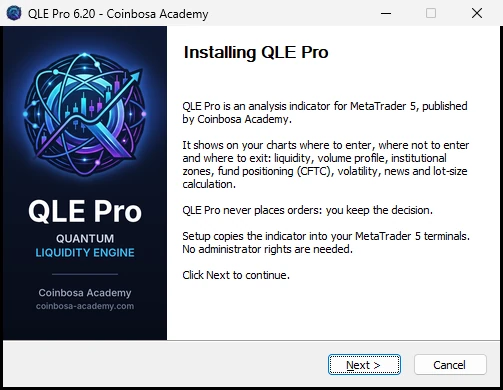
QLE_Pro_Setup_6.20.exe, then double-click it. - If Windows shows “Windows protected your PC”, click More info, then Run anyway.
- Choose the installer language, then click Next.
- Read the notice and click I agree. The installer copies QLE Pro into every MetaTrader 5 on your PC; no administrator rights are required.
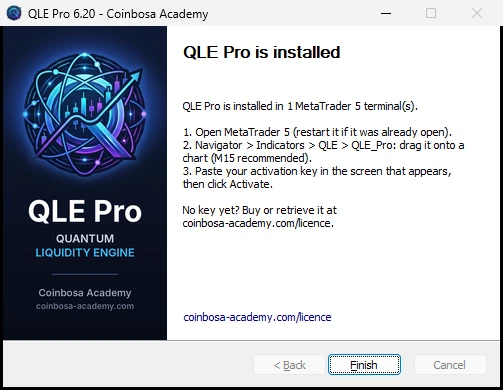
- Click Finish. If MetaTrader 5 was open, restart it.
Placing QLE Pro on a chart
- In MetaTrader 5, open an M15 chart (or M30), for example XAUUSD.
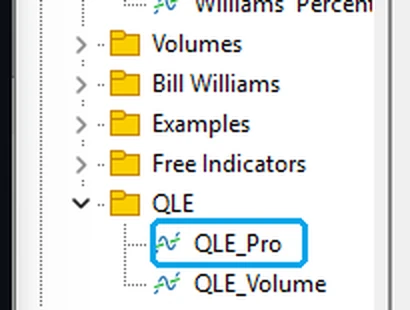
- Open the Navigator (Ctrl+N), then the Indicators > QLE folder.
- Drag QLE_Pro onto the chart, or double-click it.
- In the properties window, leave the default settings and click OK.
3Activating your licence#
One key per MT5 account, checked without an internet connection.
The first time, QLE Pro shows the QLE Pro - Activation screen with the number of the connected MT5 account.
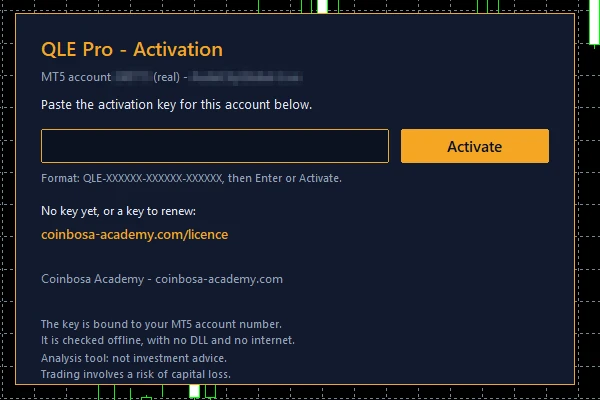
- Copy your key from the email or from your order page.
- Click in the field on the activation screen and paste the key (Ctrl+V).
- Click Activate, or press Enter. The panel appears: you're done.
The key is saved for this account: you won't need to enter it again, neither on your other charts nor after a restart.
4Choosing the language#
Seven languages, one click to switch.
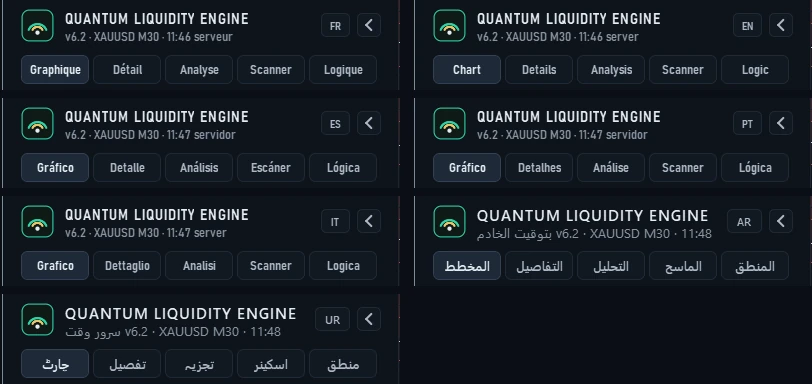
QLE Pro is available in French, English, Spanish, Brazilian Portuguese, Italian, Arabic and Urdu: panel, pages, chart drawings, alerts and activation screen. On first launch, it uses the MetaTrader language.
To switch, click the language button at the top of the panel (FR, EN, ES, PT, IT, AR, UR). Each click moves to the next language, on all your charts, and the choice is remembered.
5The panel#
The whole market situation at a glance.
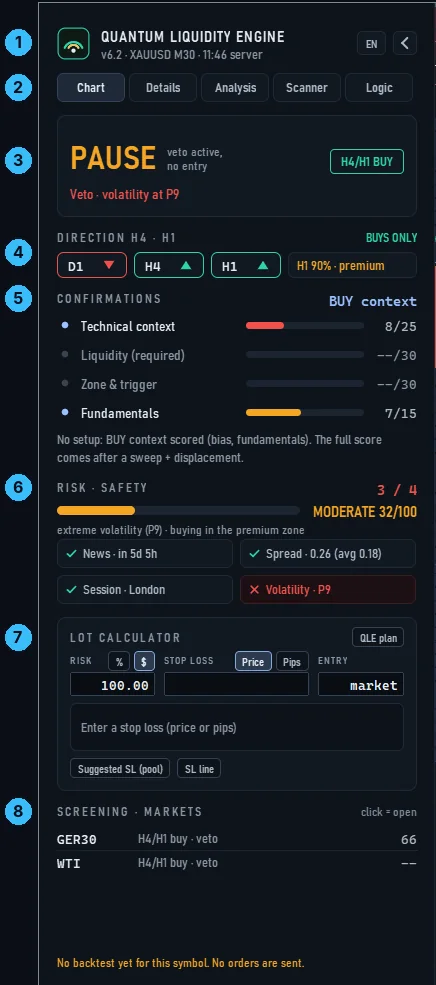
- 1. Header
- The symbol, the timeframe, the server time, the language button and the arrow that collapses the panel.
- 2. Tabs
- Chart (this view), Details, Analysis, Scanner and Logic.
- 3. Status
- STANDBY: nothing is forming. PAUSE: a veto is blocking (news, spread, session or volatility), and the reason is shown. NEUTRAL: H4 and H1 disagree. A score out of 100 appears when a scenario is taking shape.
- 4. Direction H4 · H1
- The direction of the D1, H4 and H1 timeframes, and the current rule: BUYS ONLY, SELLS ONLY or NO DIRECTION. On the right, the position of price within the H1 range (premium or discount).
- 5. Confirmations
- The four layers of the score: technical context, liquidity (required), zone & trigger, fundamentals.
- 6. Risk · safety
- A gauge from 0 to 100: SAFE below 30, MODERATE from 30 to 54, RISKY from 55 up. The four checks: news, spread, session and volatility.
- 7. Lot calculator
- The lot size to trade for your risk (see the next chapter). When a scenario is armed, the trade plan takes its place: entry, stop, targets and lot size.
- 8. Screening · markets
- The other markets closest to a scenario. One click and the chart switches to that market.
On a taller screen, the panel also shows liquidity by hour, the banks' entry zones and the day's volume profile.
6The lot calculator#
The right position size for the risk you choose.
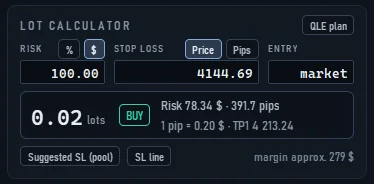
- Risk: choose % (share of the balance) or $ (fixed amount), then enter the value.
- Stop loss: enter a price (Price button) or a distance (Pips button, or Points for indices). In distance mode, choose Buy or Sell.
- Entry: leave “market” or enter an entry price.
- Read the result: the lot size rounded to your broker's step, the direction, the actual risk in $, the distance, the value of one pip, the TP1 target and the estimated margin.
QLE plan fills the calculator with the engine's plan. Suggested SL (pool) places the stop beyond the nearest liquidity pool. SL line shows an orange line on the chart: drag it and the lot size is recalculated, together with the entry and target lines.
7The chart layers#
Seven layers to show or hide with one click.

The LAYERS bar shows or hides each layer with one click. Its arrow folds it into a small badge; if candles pass underneath it, it moves up to the top of the chart.
- Volume
- Volume profile of the visible chart (POC, VAH, VAL, LVN), each day's profile, VWAP and the Asian session profile.
- Liquidations
- Heatmap of estimated liquidations, for leverage of 50, 100 and 200 on gold and indices, with the two main clusters on each side. It is an estimate: brokers do not publish actual positions.
- Banks
- Bank buy and sell zones (H4 and H1 order blocks with their confluences) and round numbers.
- Volatility
- Band of busy hours, upcoming volatility window and the day's ADR extension.
- Structure
- Highs and lows (HH, HL, LH, LL), BOS and CHoCH breaks, trend lines, premium / discount of the H1 range, harmonic patterns and kill zone.
- News
- Windows of high-impact releases: upcoming ones in red, past ones in grey.
- Screening
- The zone where the engine expects the next move: an expected liquidity sweep or an OTE zone.
8The Details, Analysis, Scanner and Logic pages#
Four pages to go further than the panel.
The tabs at the top of the panel open four pages. The mouse wheel scrolls through long pages. The Chart tab takes you back to the chart.
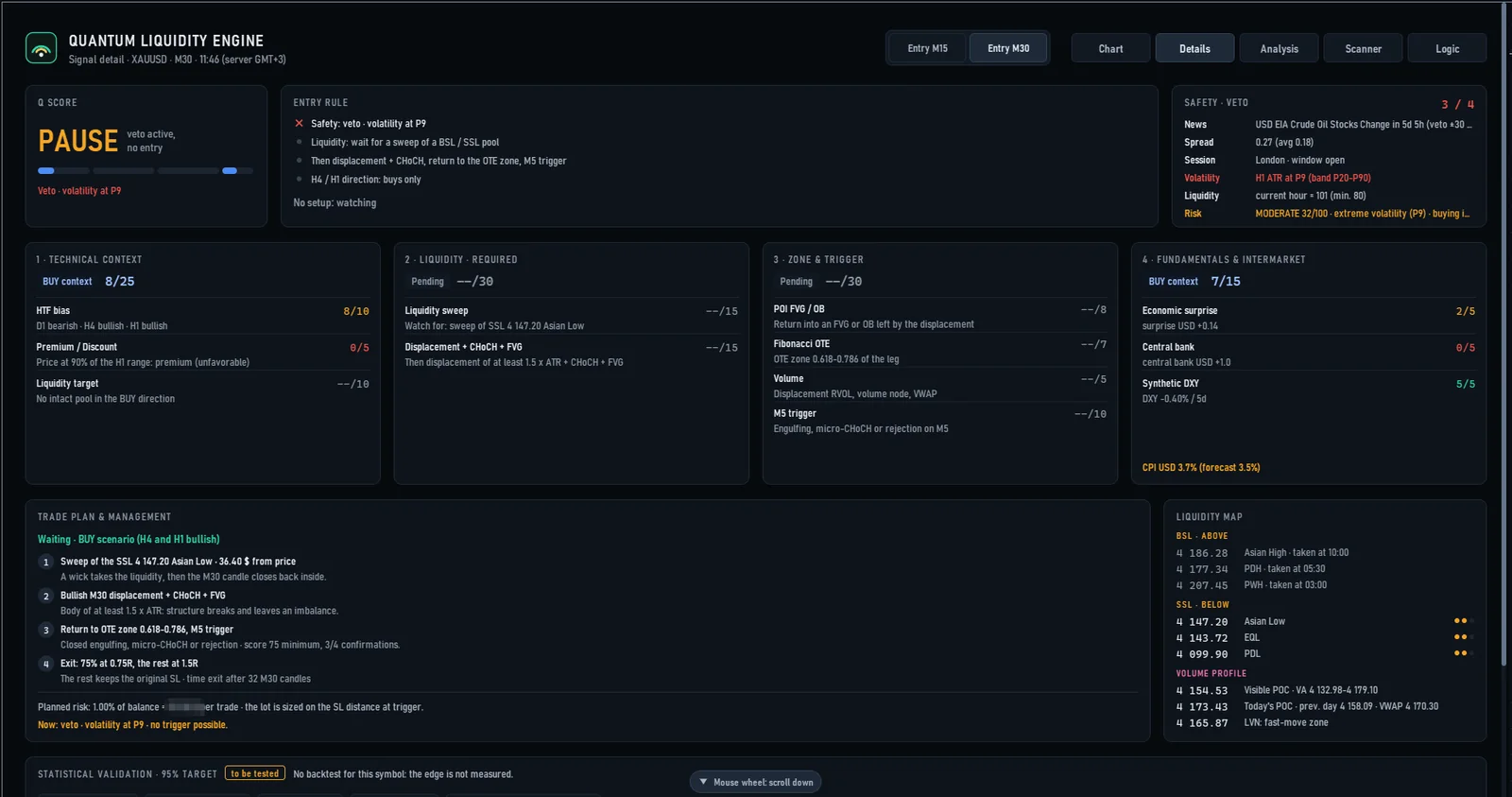
Details: the four-layer score, the entry rule, the vetoes, the scenario being watched, the liquidity map, the statistical validation and the latest signals. The Entry M15 and Entry M30 buttons choose the entry timeframe.
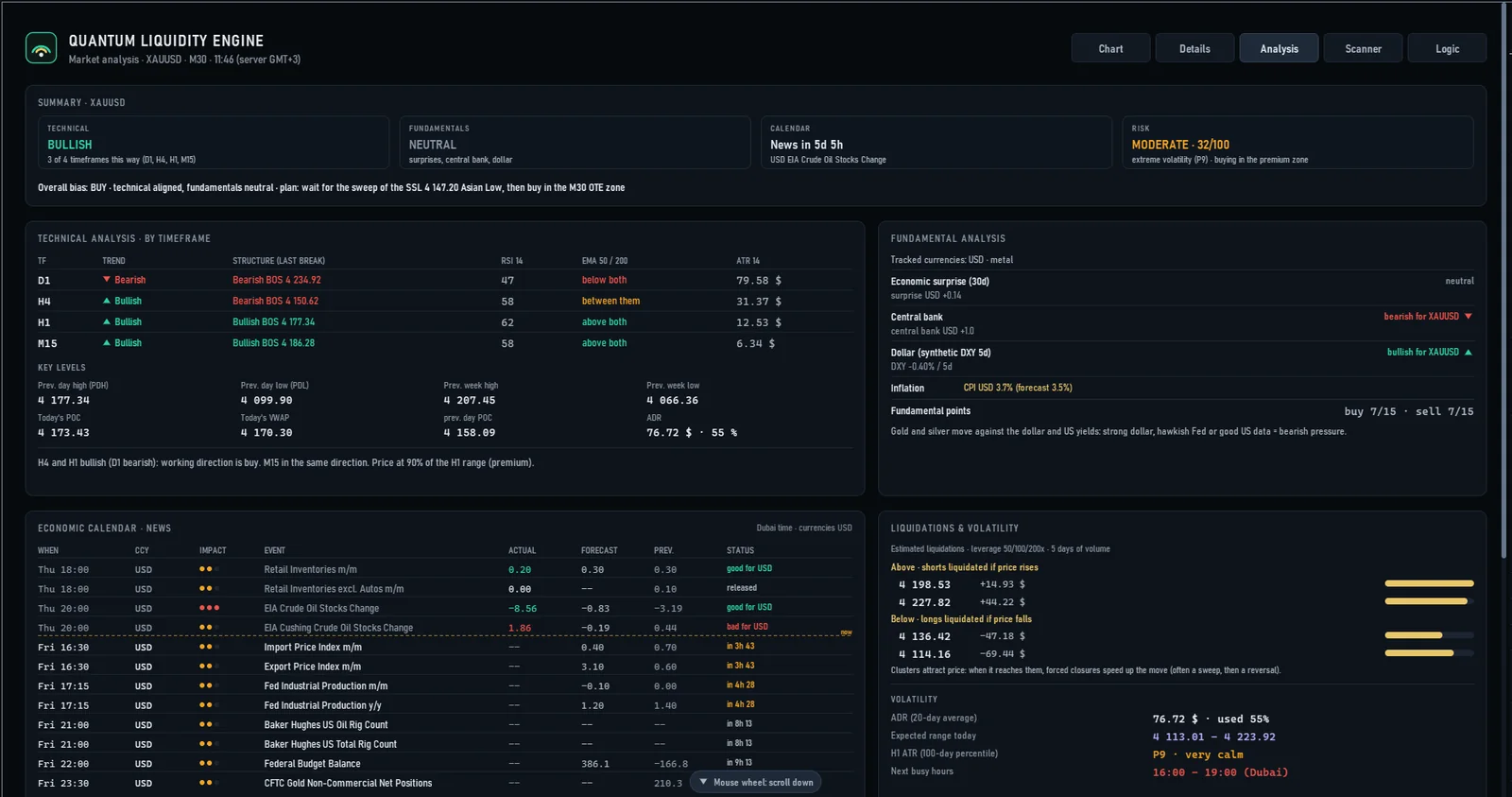
Analysis: the summary (technical, fundamental, calendar, risk), the technical analysis by timeframe (trend, structure, RSI, EMA 50 and 200, ATR), the key levels, the fundamental analysis, the economic calendar, the liquidations and the volatility.
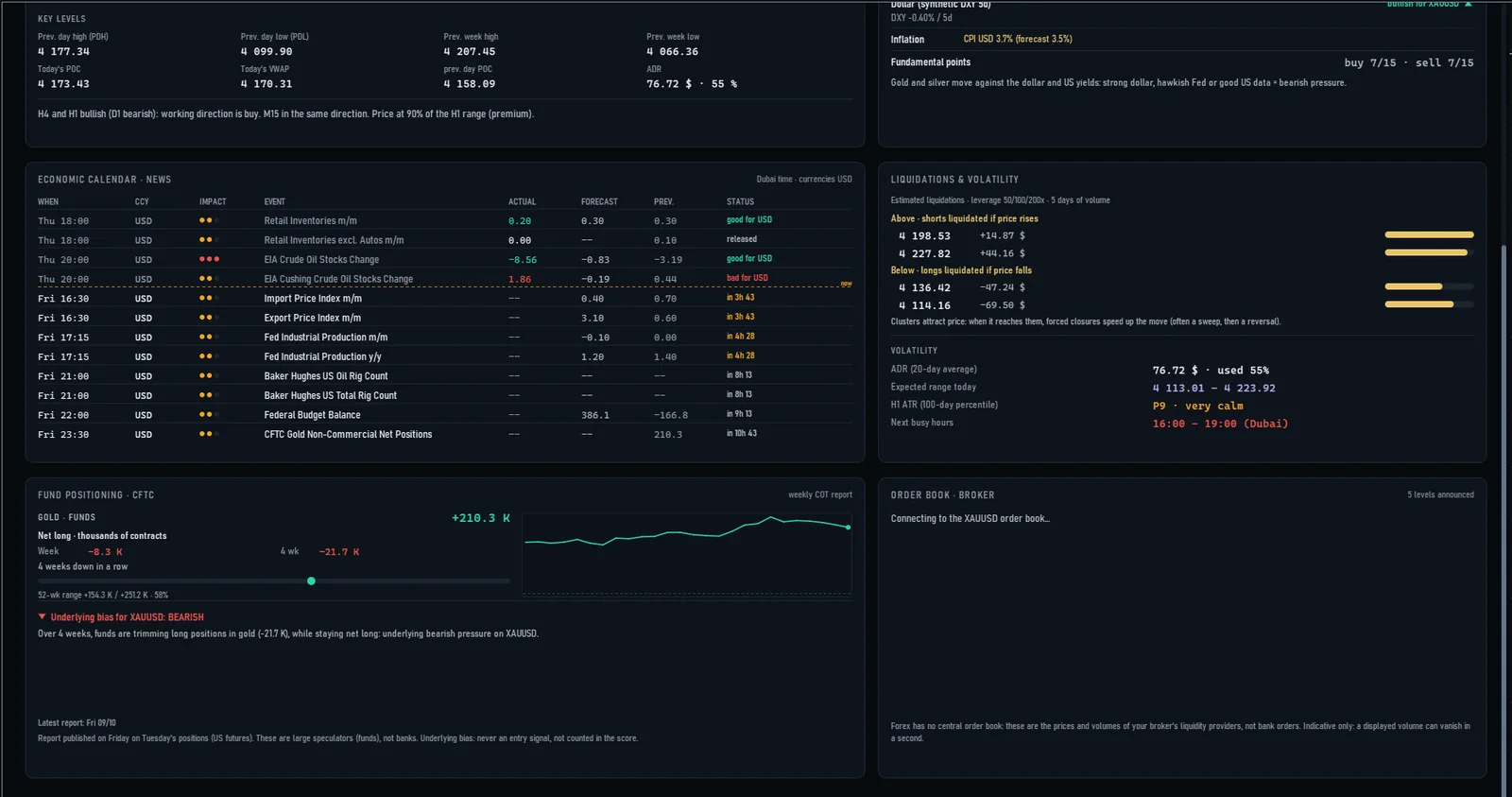
At the bottom of the Analysis page: fund positioning (CFTC). Every Friday, the CFTC publishes the positioning of large speculators in futures; QLE Pro reads it in the MetaTrader 5 calendar for 17 markets and turns it into an underlying bias for your symbol. It is never an entry signal: the data is three days old and weekly. An extreme position signals a market crowded on one side, not a certain reversal.
Then your broker's order book: the price ladder, the buyers / sellers split and the “walls”. Many CFD brokers do not provide any volume; QLE Pro then says so and points you to the liquidity pools, the estimated liquidations and the volume profile.
Scanner: eleven markets watched at the same time, with their status, their H4 / H1 bias, their score and the current hour's liquidity. Clicking a row switches the chart to that market.

Logic: the engine's reasoning, step by step, with what is confirmed and what is missing.

9How the engine reasons#
The rules a scenario must meet before it is armed.
- Direction: H4 and H1 must agree. Otherwise, no scenario.
- Liquidity (required): price sweeps a BSL or SSL pool, then closes back inside.
- Displacement on M15 of at least 1.5 times the ATR, with a CHoCH and an FVG.
- Return to the OTE zone (0.618 to 0.786) and a closed M5 trigger.
- Score of at least 75 out of 100, with 3 confirmations out of 4.
- No veto: no high-impact news within 30 minutes, normal spread, London - New York window, volatility not extreme, enough hourly liquidity, stop no wider than 1.5 times the H1 ATR.
10Useful settings#
What you can change, and where.
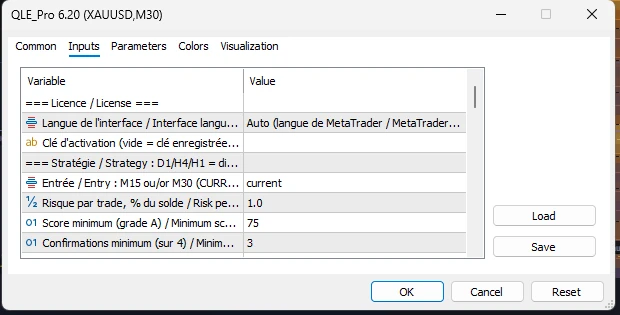
To open the settings: Ctrl+I, select QLE_Pro, click Properties, then the Inputs tab. The settings apply to this chart only.
- Interface language
- Auto (language button, otherwise the MetaTrader language) or a fixed language for this chart.
- Activation key
- Leave it empty: the key already saved for this account is used.
- Risk per trade (%)
- The trade plan's risk, as a percentage of the balance (1% by default).
- Minimum score / minimum confirmations
- 75 and 3 by default. Below these, no scenario is armed.
- Layers at start-up
- Each layer can be switched off: liquidations, volatility zones, structure, volume by day, round numbers, screening and the layer bar.
- Interface size
- 0 = automatic. Increase it on a large screen.
- Scanner markets
- The list of watched symbols, separated by commas.
11Updating or uninstalling#
Your licence is kept.
- To update, download the new installer and run it: it replaces QLE Pro in all your MetaTrader 5 terminals.
- In MetaTrader 5, remove the indicator and add it again (Ctrl+I, QLE_Pro, Delete, then drag it again from the Navigator), or restart MetaTrader 5.
To remove QLE Pro from a chart: Ctrl+I, QLE_Pro, Delete. The chart's original colours come back.
To uninstall it: Windows Settings > Apps > QLE Pro (Coinbosa Academy) > Uninstall.
12Frequently asked questions#
Answers to the most common questions.
Does QLE Pro place orders?
No. It has no order function at all: it displays, calculates and suggests. The decision stays with you.
I can't see QLE in the Navigator.
Restart MetaTrader 5, or right-click Indicators, then Refresh. If you have several MetaTrader 5 terminals, check on the installer's last page that yours was found.
My key is rejected.
Check that the account number shown on the activation screen is the one in your order, and that the key was copied in full (QLE-XXXXXX-XXXXXX-XXXXXX). A trial key only works on a demo account.
I have changed MT5 account.
The licence is tied to the account number. Write to us with your order number to find a solution, or buy a key for the new account.
Do I need an internet connection or to allow DLLs?
No. The licence is checked offline, without any DLL. All the data comes from your MetaTrader 5: prices, economic calendar and market depth.
On which markets and timeframes?
On every symbol your broker offers. The engine is tuned for M15 and M30; the estimated liquidations are designed for gold and indices.
Why does the panel show PAUSE?
A veto is active: high-impact news nearby, abnormal spread, outside London - New York hours or extreme volatility. The reason is written under the status.
The order book is empty.
Your broker does not provide market depth volumes. QLE Pro says so and relies on the other liquidity sources.
My chart's colours have changed.
QLE Pro applies an easy-to-read dark theme. Remove the indicator to get your colours back.
Can I use it on several charts?
Yes, on as many charts as you like, for the same MT5 account.
13Need help?#
We answer on WhatsApp and Telegram.
Write to us:
WhatsApp: +971 58 819 8147
Telegram: @coinbosacademy
You can also use the contact form on the website. For a quick answer, give your order number and your MT5 account number, and attach a screenshot of the problem.